[note class=”time”]Time reading this page: 10 minutes
Time installing the indicator: Just a few minutes with our MetaTrader Pro setup[/note]
What does it do?
The Analytic Trading Support & Resistance Levels indicator is designed to automatically draw horizontal lines from the last few high & low price levels the higher timeframes achieved.
Due to the fractal nature of price movements, it works in the same way when used on any timeframes, and therefore, should suit all trading styles.
We think you will find it quite fascinating how often and closely price responds to these historically drawn levels, often exactly or within a few pips…
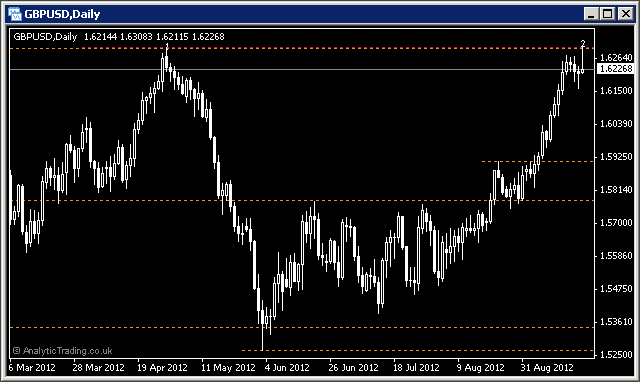
These levels are colour coded using rainbow colours to make it easier to remember what they signify – for time-efficient chart analysis:
Red: Monthly Highs & Lows
Orange: Weekly
Yellow: Daily
Green: 4-Hourly
Blue: Hourly
Indigo: 30-Minute
Violet: 15-Minute
The Monthly and Weekly levels are drawn on all chart timeframes, then the rest are drawn with various granularity settings used to draw levels from one or two timeframes above – to give you either more, finer levels or fewer, stronger levels to suit your trading timeframe and targets.
When a level has a bar breakout we label that bar 0, and subsequent tests of the last level breached are labeled 1, 2, 3 and so on. The principle we work on is that the first touch or re-test of a significant level from either side can have the biggest reaction, with each subsequent test increasing the possibility for the level to be broken.
What is it for?
The Support & Resistance indicator is designed to help traders accurately identify higher-timeframe levels when looking for entry and exit levels on the lower timeframes. These levels are the historical extremes of price movement showing the previous limits of the markets, where the largest profits and losses were made by traders, and are therefore they become significantly memorable levels, and areas of attraction when price subsequently re-approaches to re-tests them.
We use these levels as higher value areas to enter and exit trades – to minimise risk and maximise the reward ratio of each trade. These levels occur on all price charts and are a non-calculated indicator – they show actually historical reversal points in any market at those prices (as opposed to averaging indicators like Moving Averages, Stochastics, RSI etc).
The expectation is that on subsequent retests of these levels price will have the greatest reaction, either when rejected or broken, and therefore can offer the best risk to reward trading opportunities to trade with.
How do we use it?
These areas of value help us to place our stop losses and profit targets at logically significant levels, and form an opinion of future direction – following tests and closes of bars/candles across these levels and expectations to test further levels on either side.
We look for first and second touches of these levels from the same or opposite side of their formation as entry and exit points, and we look for how bars/candles close when they do interact with these levels to manage our trades and decide whether to let them continue to run, adjust them, or close them.
We also look at the speed at which price approaches these levels using our ATR indicator values to try to find exhaustion points in rapid price movements where it could then retrace from a first or second touch.
The best way to understand how they work is to give yourself some chart-watching time, and build experience of using them as part of your trading strategy.
The automation of this will save you a lot of time on technical-trading chart management, and evaluating different instruments to trade – freeing your time for greater discretion and analysis when looking for the best trades and investments for your goals.
[note class=”info”]Remind yourself of the principles of Support & Resistance at babypips.com[/note]
[clearline]
Support & Resistance specific settings
In most cases these settings can be left on the default values, although users with different strategies or preferences to our own may want to be able to adjust them.
| Variable | Default Value | Possible Values | Description |
| Detail | medium | fine/medium/wide | “medium” will work well for most instruments and trading strategies but if there are too many lines on a particular instrument then try “wide”. |
| ChartTFPoints | 10 | whole numbers | This is how many highs/lows back to draw the levels from on each timeframe, values between 2 and 20 will tend work best, generally 7 to 12 work well for us but 10 is usually about right. |
| extDepth | 8 | whole numbers | This is the minimum number of bars between highs and lows for them to qualify as a swing point. We have found 8 to give us good strong levels, 3 would be a minimum and show more levels but from lesser swings, and 20 as a maximum would give stronger but fewer swing levels. |
| extDeviation | 1 | whole numbers | This is how many bars after a high must be lower, or after a low must be higher to qualify as a high or low. We use 1 because that gives us all the highs and lows we need but you could try values of 1-20 for more significant but less frequent lines. |
| extBackstep | 2 | whole numbers | This is how many bars before a high must be lower or before a low must be higher to qualify as a high or low. We use 1 because that gives us all the highs and lows we need but you could try values of 1-20 for more significant be less frequent lines. |
[toggle title=”Pip Calculation Settings”]
Pip calculation settings used on all indicators
In most cases these can be left on the default settings but may be used where you would like price shown in pips accurately on a broker where we have not yet tested the calculation for their setup.
| Variable | Default Value | Possible Values | Description |
| TradeDPCalcType | auto | auto/semi-auto/manual | For most brokers the indicator can automatically calculate the value of a pip using “auto”. However, if pips are incorrectly displayed for a broker or instrument you can try “semi-auto” and set the instrument type for the current chart, or you can set to “manual” and specify in a number to how may decimal points the value of a pip is. |
| TradeDP | 4 | whole numbers | If you need to use TradeDPCalcType=manual then here you need to specify the number of decimal places that 1 pip is at. So for a EURUSD price displayed as 0.12345 or 0.1234 the value would be 4, for USDJPY prices displayed as 00.123 or 00.12 the value would be 2. |
| ShowExtraInfo | false | true/false | Setting this value to true will show the pip calculation mode in brackets at the end of the displayed text on the chart to help with diagnosing pip calculation. |
[/toggle]
[toggle title=”Display Settings”]
Display settings used on all indicators
In most cases these can be left on the default settings for a nice clean chart setup. You may wish to change some of these settings if you have your own preferred chart colours and layout etc.
| Variable | Default Value | Possible Values | Description |
| display_font_colour | white | any colour name or RGB value | The colour of the text comments information displayed on the chart. |
| display_font_size | 7 | any whole number | Values 6 to 12 are probably most appropriate. The default of 7 is designed to match the default instrument text information displayed in the top left corner of all MetaTrader charts. |
| display_corner | 0 | 0/1/2/3 | 0=TopLeft, 1=TopRight, 2=BottomLeft, 3=BottomRight. |
| display_distance_x | 3 | any whole number | The horizontal distance in pixels to display the comment text from the selected corner. |
| display_distance_y | 25 | any whole number | The vertical distance in pixels to display the comment text from the selected corner. |
| bgBoxColour | Black | any colour name or RGB value | The colour of the background block used to make the comment text more readable over the price bars/candles/lines behind them. |
| bgBox_width_perc | 32 | whole numbers from 20-100 | This is the multiplier used to approximate the text width for the background coloured block to match it and keep the text readable but not cover up too much of the price bars/candles/lines behind it. |
[/toggle]