[note class=”time”]Time reading this page: 5 minutes
Time installing the indicator: Just a few minutes with our MetaTrader Pro setup[/note]
What does it do?
The Analytic Trading Breakouts indicator automatically draws red and green lines on the chart for price levels that have been broken by large bullish and bearish candles. The lines remain until the breakout price level has been re-tested by a bar from the opposite side. By default it will show 3 levels above and 3 levels below the current price that have not yet been retested.
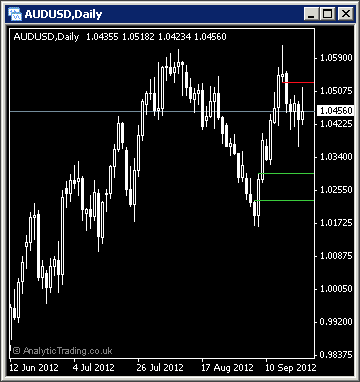
In addition, for backtesting how price reacts to these levels when it re-tests them, past levels can be shown and statistics on the percentage of the time the first re-test of the level closes onside within X bars.
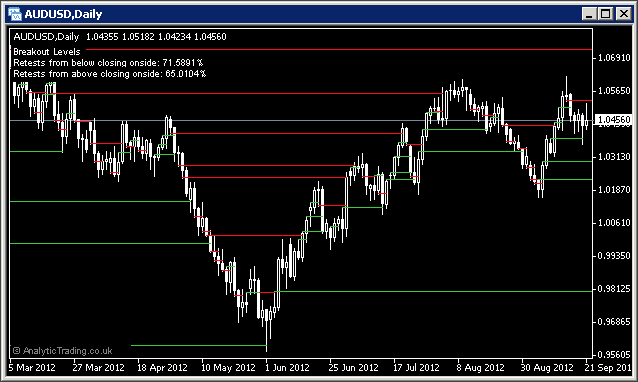
This gives you the ability to better understand how this pattern performs on various instruments and timeframes as part of your strategy building, and to help maximise a positive edge when combined with other price-action signals and technical analysis.
What is it for?
Breakout bars tend to show a rapid change in the trading range of market price in one direction. Markets find their price through a mechanism know as price discovery, this is where bulls and bears trade the instrument in each direction to the point that one is exhausted and the direction reverses to find the next equilibrium for value.
The breakout bars will tend to occur at times of significant news or rumour information releases, or after the build up of significant bullish or bearish pressure – normally showing as a wedge or flag shaped pattern on your charts.
Breakout levels are where a prior high or low is tested in one direction and successfully breached in that direction. Once the bar closes through this level we view this as temporary confirmation of the market directional bias, and the potential beginning of a new trend.
However, the price discovery mechanism as to whether this level is a new temporary floor or ceiling for bulls or bears isn't complete until that previous exhaustion point has been retested from the opposite side.
We actually consider breakout bars and market gaps as the same pattern and signal, and use them in similar ways.
How do we use it?
We use breakout levels as price points of significant interest, using the breakout direction to show us an increased probability market directional bias with a successful breach and close.
However, once the move has occurred, most of the potential profits from the initial move will have been made by traders on a lower timeframe so we do not enter trades at the market price upon the bar close but look for a second chance to enter a trade in the same direction when price has retraced back to that level from the opposite side.
Entering a trade on the first retest of these levels is, for us, a trade of good value because we have both the directional bias and knowledge that this price was a previous exhaustion point and therefore more likely to produce a positive reaction upon the subsequent re-test.
We are looking at the green levels to place buy limit orders to enter trades and buy stops to exit them, and the red levels to enter sell limit orders and sell stops when they occur at prices that are also significant levels as shown by our Support & Resistance Levels indicator.
The most desirable setup, for us, occurs when trading inside two breakout levels that both have been breached by large candles and have as yet large gaps from subsequent bars that have not re-tested the breakout levels.
Please don't be tempted to buy and sell at every line though because this indicator is still designed to be used in conjunction with market analysis using the rest of our indicators setup – like the higher-timeframe candles directional bias, and a certain amount of personal discretion.
We recommend you spend some time watching how price reacts to breakout levels and studying the price-action at them with the historical levels showing, before you use them to trade.
[note class=”info”]Learn more about Breakouts at babypips.com but be careful to remember we trade them in a slightly different way, using them as recent levels of interest to enter an exit trades[/note]
[clearline]
Breakout Levels specific settings
In most cases these settings can be left on the default values, although users with different strategies or preferences to our own may want to be able to adjust them.
| Variable | Default Value | Possible Values | Description |
| BackBars | 5000 | whole numbers | This is the amount of bars back used to analyse for breakout levels. |
| RetestDistInATRs | 0.0 | decimal numbers | This is the distance from a breakout level that would be considered a retest as a multiple of the current instrument and timeframe ATR25. The default is 0.0 but you can try values 0.1, 0.2, 0.3 etc with the indicator history and statistics showing to see how it affects the performance of the signal. |
| BreakoutUpColor | LimeGreen | any colour name or RGB value | The colour of the bullish breakout level trend lines. |
| BreakoutDownColor | Red | any colour name or RGB value | The colour of the bearish breakout level trend lines. |
| MinBreakoutBars | 1 | whole numbers | This is the number of bars after a breakout bar that are recognised before qualifying as a re-test. Some traders ignore a re-test from the first, second, third bar after a breakout. Try settings 1, 2, 3, 4 etc with the indicator history and statistics showing to see how it affects the performance of the signal. |
| BarsToCheckForOnsideClose | 2 | whole numbers | This is the number of bars to check upon a re-test of a level for a close on-side or off-side to form the statistics and to consider the breakout level as having been re-tested. We tend to consider 2 bars as as a confirmed re-test as a sufficient period of time for the bar creation interval to be eliminated a factor in dictating a confirmed close as a successful or not. Try values from 1 to 10 with the indicator history and statistics showing to see how it affects the performance of the signal. |
| Max Lines | 3 | whole numbers | This is the number of breakout levels to display above below the current price for normal usage when the historical levels are not showing. |
| ShowHistory | false | true/false | The switch to show or hide the historical breakout levels for backtesting analysis. |
| ShowStatistics | false | true/false | The switch to show or hide the historical statistics text on the chart. |
[toggle title=”Pip Calculation Settings”]
Pip calculation settings used on all indicators
In most cases these can be left on the default settings but may be used where you would like price shown in pips accurately on a broker where we have not yet tested the calculation for their setup.
| Variable | Default Value | Possible Values | Description |
| TradeDPCalcType | auto | auto/semi-auto/manual | For most brokers the indicator can automatically calculate the value of a pip using “auto”. However, if pips are incorrectly displayed for a broker or instrument you can try “semi-auto” and set the instrument type for the current chart, or you can set to “manual” and specify in a number to how may decimal points the value of a pip is. |
| TradeDP | 4 | whole numbers | If you need to use TradeDPCalcType=manual then here you need to specify the number of decimal places that 1 pip is at. So for a EURUSD price displayed as 0.12345 or 0.1234 the value would be 4, for USDJPY prices displayed as 00.123 or 00.12 the value would be 2. |
| ShowExtraInfo | false | true/false | Setting this value to true will show the pip calculation mode in brackets at the end of the displayed text on the chart to help with diagnosing pip calculation. |
[/toggle]
[toggle title=”Display Settings”]
Display settings used on all indicators
In most cases these can be left on the default settings for a nice clean chart setup. You may wish to change some of these settings if you have your own preferred chart colours and layout etc.
| Variable | Default Value | Possible Values | Description |
| display_font_colour | white | any colour name or RGB value | The colour of the text comments information displayed on the chart. |
| display_font_size | 7 | any whole number | Values 6 to 12 are probably most appropriate. The default of 7 is designed to match the default instrument text information displayed in the top left corner of all MetaTrader charts. |
| display_corner | 0 | 0/1/2/3 | 0=TopLeft, 1=TopRight, 2=BottomLeft, 3=BottomRight. |
| display_distance_x | 3 | any whole number | The horizontal distance in pixels to display the comment text from the selected corner. |
| display_distance_y | 25 | any whole number | The vertical distance in pixels to display the comment text from the selected corner. |
| bgBoxColour | Black | any colour name or RGB value | The colour of the background block used to make the comment text more readable over the price bars/candles/lines behind them. |
| bgBox_width_perc | 32 | whole numbers from 20-100 | This is the multiplier used to approximate the text width for the background coloured block to match it and keep the text readable but not cover up too much of the price bars/candles/lines behind it. |
[/toggle]